
Every kind of Content you can put in a Frame, and every setting that controls how it looks and where it appears.
Who this is for: anyone building Frames: worship leaders, small-group leaders and media volunteers.
On this page
- Add Content
- The Content list
- Content Settings
- Question
- Scripture
- Editing questions and scriptures
- Discussion topic, Icebreaker and Poll
- Text, Prayer Point, Lower Third and Branding
- Timer
- Image, Video and PowerPoint
- Free Content
- Show on: where Content appears
- Placeholders: {meeting} and {org}
Add Content
- Select a Frame.
- Select + Content.
- Choose a type. The menu has two parts:
| Main types | Free Content |
|---|---|
| Question | Announcement |
| Scripture | Prayer Point |
| Text | Lower Third |
| Discussion topic | Birthday |
| Icebreaker | Branding (logo + Meeting Name) |
| Poll (show of hands) | Camera |
| Image… | Screen…, Window (live PowerPoint or any app)… |
| Video… | Logo…, Watermark…, Free text on the picture, Shape, Background |
| Timer | |
| PowerPoint… |
Note: A Frame has at most one Question, one Scripture, one Birthday and one Branding Content. Put all of a Frame's questions into its one Question list. If you choose Question again, FrameDecks takes you to the existing list.
Note: Picture-based Content (image, video, PowerPoint, camera, screen, window, logo, watermark, free text, shape and background) is part of the FrameDecks picture. These items are greyed out until the FrameRelay camera is on (Settings → FrameRelay Camera).
The Content list
The Content list (left, below the Frames) shows what is in the selected Frame.
- Order: the top of the list is in front. Drag to change the order.
- Eye: show or hide one piece of Content.
- Lock: stop a piece of Content from being moved or changed by accident. Unlock it to change it.
- Rename: double-click the name or press F2. The name becomes a text box in the list: Enter saves, Esc cancels, and clicking away saves.
- ⋯ menu: Rename, Duplicate, Move forward, Move backward, Delete Content.
- Select several: Ctrl+Click, Shift+Click, or drag a box from empty space in the list. Ctrl+A selects all. Then Delete (or Backspace) deletes them, with Undo in the message (you are asked first only for 5 or more); Ctrl+C, Ctrl+X and Ctrl+V copy, cut and paste; Ctrl+D duplicates; drag to move them. Right-click for the same actions in a menu.
Questions, scriptures, birthdays and text always appear in front of camera and media Content.
Content Settings
Select a piece of Content and its settings appear in Content Settings, below the Studio Canvas. Everything is visible at once, in groups, with the most used first. The group names at the top jump to their group.
| Group | What it holds |
|---|---|
| Label | The small heading on the card, and whether it shows |
| Content | What it says or shows: the list, the text, the countdown |
| Display Settings | Where it sits on the picture and how wide it is. Inside it: Animation (how it appears) and Show on (FrameDecks, OBS pages, or both) |
| Visual Settings | Text size and opacity |
| Media | File, slide and placement settings for pictures, video and PowerPoint |
A Frame's own settings are in Frame, Timing and History. See Frames.
Question
A Question Content holds this Frame's list of discussion questions. It shows one at a time.
Content group: the list
- + Question adds a question after the current one.
- Add several lets you paste many questions at once, one per line.
- Click a question to make it the Frame's current one.
- Show puts it on screen (when the Frame is live). On screen marks the one showing.
- Drag the handle (⋮⋮) to reorder, or use ↑ / ↓.
- ✕ removes a question; Remove all empties the list.
- Show: Question · Both · Scripture chooses what Show puts on screen: the question, the question with its scripture, or the scripture only.
Label: the small heading above every question, such as Discussion Question. Untick Show to hide it. Each question can have its own label.
Visual Settings
| Setting | What it does |
|---|---|
| Text size | The size of the question text |
| Card opacity | How much of the video shows through the card (70%, 80%, 90%, 100% presets) |
Display Settings: Width and Above bottom. Recommended layout puts them back.
Animation: how each question appears: Fade, Gentle rise, Word by word, Typewriter, Burst, Cut, or Random (pick a different transition each time).
Scripture
A Scripture Content holds this Frame's list of Bible passages. It works like the Question list.
Fetch a passage (ESV, online)
- Type a reference above the list, for example Romans 8:28.
- Select Fetch scripture. The passage is added to the list, or fills the scripture you are editing.
- Refresh, Context and Read aloud are next to it.
Fetching ESV text needs internet and an ESV API key in Settings → Scripture.
Any other translation (offline)
- Set Fetch from to Type it myself.
- Add a scripture and type or paste the reference, the translation (for example NIV or KJV) and the text.
Label: the heading and Show. Display Settings: Left, Center or Right, Height and Width. Visual Settings: Text size and Card opacity. Animation: the same choices as Question.
Editing questions and scriptures
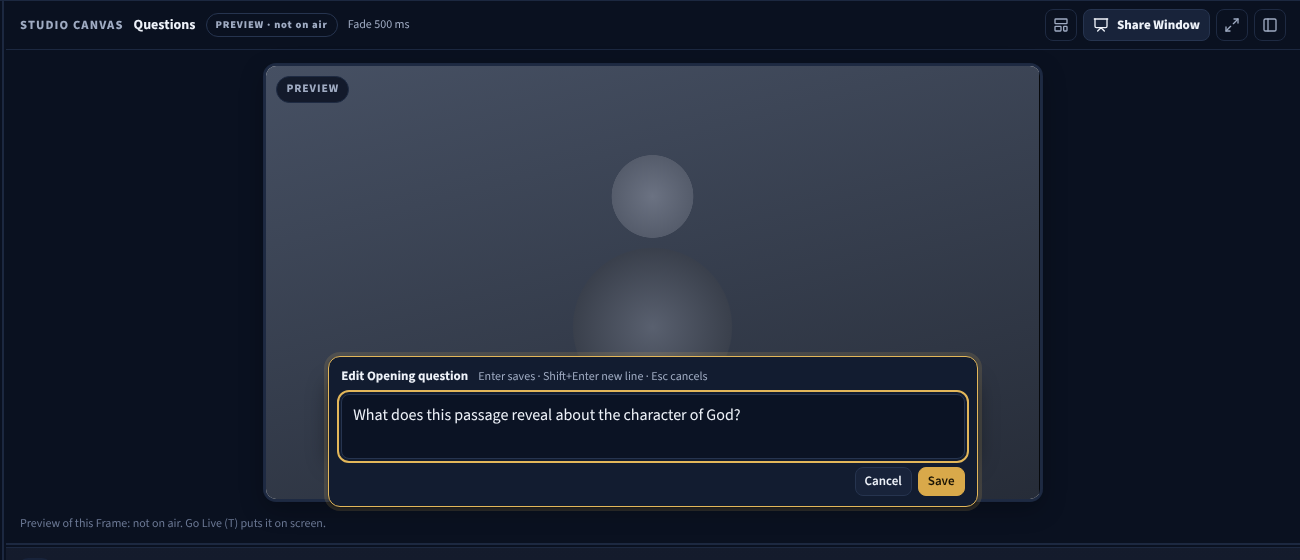
You edit right where the text is. There are no pop-up windows. Everywhere:
- Enter saves; Shift+Enter starts a new line; Esc cancels.
- A click outside the box also saves.
- If the item is on screen, the screen changes as soon as you save.
In the list
In the Frame's question or scripture list, double-click the label or the text of an item and type.
For every setting of one item, select it and press Enter (or select its settings button). The editor opens in the same panel:
| Field | Shown on screen? | Notes |
|---|---|---|
| Label | Yes | Empty = the Content's label |
| Question / Reference, Translation, Text | Yes | |
| Transition | — | Content default, Random or a specific transition for this item only |
| Show (questions) | — | As chosen in the list, the question only, the question with its scripture, or the scripture only |
Changes save as you type. Use the ‹ › buttons to edit the previous or next item, Show on screen to show it, and Done (or Esc) to return to the list.
Note: Questions no longer have an Answer or Notes field (6.7). Older answers and notes are kept in your data, but no screen shows them. Write what you want to remember in the Frame's Teleprompter script. See Presentations.
On the Studio Canvas
Double-click any card on the canvas, in the preview or on the live picture: question, scripture, announcement, prayer, discussion topic, icebreaker, poll, lower third or timer. You edit its main text. Double-click the card's label (its top line) to edit the label instead.
Discussion topic, Icebreaker and Poll
Three ready-made text cards in + Content, for small groups and Bible studies. Each one starts with a label and sample text; double-click the card on the canvas to change them.
| Type | Starts with |
|---|---|
| Discussion topic | Group Discussion: a topic for everyone to talk about |
| Icebreaker | Opening Thought: a light question to start the meeting |
| Poll (show of hands) | Quick Poll: answers A, B and C, and a line asking people to raise a hand or type in the chat |
Note: The Poll only shows the question and the choices. There is no voting and no counting: people answer by raising a hand or typing in the meeting chat.
The same three are in the Content Library (the Library filter in the Frames list), under Discussion Questions. They work like Text, so every setting below applies.
Text, Prayer Point, Lower Third and Branding
Text (an announcement card), Prayer Point and Lower Third are text cards. They work on every output, including the OBS pages.
Content
| Setting | Text / Prayer Point | Lower Third |
|---|---|---|
| Title | Title, with Show the title | Name (first line), with Show the name |
| Body | Text | Role or second line |
| Logo | Show my logo on this card | Show my logo on this card |
Label: the title, with Show. Display Settings: Position (Top, Centre, Bottom, Upper left / right, Lower left / right) and Width. Animation: Appears with Fade, Gentle rise or Cut. Visual Settings: Text size and Opacity.
If the Frame is live, changes appear on screen as you type.
Branding is a small badge with your logo and Meeting Name. Set the logo and names once in Settings → Meeting & Branding. A quick way to add or remove it is the Branding tick in a Frame's settings.
| Group | Setting | What it does |
|---|---|---|
| Content | Display | Logo only, Name only or Logo + Name |
| Content | Also show the Leader / Organization Name | Adds your organization under the name |
| Content | Remove the logo's background | Makes a plain background around your logo transparent. See Branding |
| Display Settings | Position | One of the four corners, or Or centred: Top, Centre or Bottom |
| Display Settings | Safe margin | How far the badge stays from the edges of the picture |
| Visual Settings | Size and Fine size | Small, Medium or Large, then adjust it exactly |
| Visual Settings | Opacity and Padding | How see-through the badge is, and the space around the logo and name |
| Visual Settings | Background plate | On: a navy plate with your accent edge. Off: a soft shadow keeps it readable on any picture |
The badge looks the same on the FrameRelay camera and the OBS pages, and it keeps its size at 720p, 1080p or 4K.
Timer
A Timer counts down on screen, for example before the service starts or during group discussion.
| Setting | What it does |
|---|---|
| Label and Show | The heading, such as Starting in |
| Count | Duration (a number of minutes) or Until a time (a time of day, such as 10:30) |
| Minutes / Until (time of day) | Only the one for your choice is shown |
| At zero, show | The text shown when it reaches zero, such as Starting now |
| Restart the countdown | Starts it again from the beginning (when the Frame is live) |
Display Settings, Visual Settings and Animation work as for Text.
Image, Video and PowerPoint
These are part of the FrameDecks picture. Their Media group has:
| Setting | What it does |
|---|---|
| File / Choose a file… | The picture, video or PowerPoint file |
| Start at slide (PowerPoint) | The slide it opens on. Previous / Next slide move through the slides |
| Show objects only (PowerPoint, Window) | Makes a plain slide background see-through, so text and pictures sit on the camera |
| Centre X / Y, Width, Height | Placement, as percentages of the picture |
| Opacity | How see-through it is |
When the Frame is live, drag Content directly on the canvas to move it, and use the handles to resize it.
PowerPoint: a .pptx is turned into slides by the PowerPoint installed on the PC. For animations, add the running slide show as Free Content → Window instead. See Media and reference/powerpoint.md.
Audio
+ Content → Audio… adds a sound file (MP3, M4A, WAV or OGG) to the Frame, such as a song, a reading, or a bell before prayer. It is never part of the picture.
| Setting | What it does |
|---|---|
| File / Choose a file… | The sound file (kept in the data folder's layers folder) |
| Repeat until the Frame leaves the screen | Plays it again and again, for background music |
| Volume | Its loudness, 0–100% |
It plays from the start, through this PC's speakers, when its Frame goes live. It stops when the Frame leaves the screen, when its eye is turned off, or with Hide all (Esc). Only the program's own window plays it; a browser tab, OBS and phones do not. For an online meeting, share the PC's sound: in Zoom, Share Screen → Share sound; in Teams, Include sound.
Free Content
| Type | What it is |
|---|---|
| Announcement | A text card (the same as Text) |
| Prayer Point | A text card for prayer requests |
| Lower Third | A name and role across the bottom, for a speaker or a reader |
| Birthday | A birthday celebration card |
| Branding | Your logo and Meeting Name badge |
| Camera | Your webcam, placed anywhere on the picture |
| Screen… | A whole display, shared into the picture |
| Window… | One app window, such as a live PowerPoint slide show |
| Logo…, Watermark… | A picture, placed as a logo or a faint watermark |
| Free text on the picture | Text drawn straight onto the picture |
| Shape | A rectangle, for example behind text (the live Studio's own Add menu also has an Ellipse) |
| Background | A colour or picture behind everything |
Show on: where Content appears
Cards and text have a Show on group (inside Display Settings):
- FrameDecks (the Zoom / Teams camera, recordings and the Presentation window);
- OBS / browser overlay pages.
Untick one to keep that Content off that output. For cards it applies when the Frame is taken live; for text it applies at once.
Camera and media Content is the FrameDecks picture itself, so it has no Show on group.
Placeholders: {meeting} and {org}
In Text, Prayer Point and Lower Third, type:
- {meeting} to show your Meeting Name;
- {org} to show your leader or organization name.
Set both in Settings → Meeting & Branding. Change them once and every card that uses them follows.
Related
- Frames
- Media
- Presentations
- Service planning
- PowerPoint reference