
Everything you need while the meeting is happening: going live, moving through Frames, handling the unexpected and keeping your script in view.
Who this is for: service operators, worship leaders and small-group leaders who run the screen during a service or meeting.
On this page
- Where your presentation appears
- Preview first, then Go Live
- Move through the meeting
- Questions and scriptures
- Transitions
- When something goes wrong: Hide all, Black screen, Emergency, Freeze
- Annotate: draw on the picture
- Teleprompter
- Teleprompter overlay (Meeting Leader mode)
- Command palette and Spotlight
- Projector, TV and screen sharing
- Keyboard shortcuts
- Live-safety tips
Where your presentation appears
FrameDecks sends one finished picture to every place you use, all at the same time.
| Output | Use it for | How |
|---|---|---|
| FrameRelay camera | Online and hybrid meetings | Choose FrameDecks as the camera in Zoom, Teams, Meet or OBS |
| Presentation window | A projector or TV in the room, or Share Screen → window in Zoom | Studio → Share Window, then Full screen |
| Overlay pages | OBS setups that add cards over their own video | http://localhost:8750/... as an OBS browser source |
Preview first, then Go Live
The Studio Canvas always tells you whether you are looking at the screen people see.
| Badge | Meaning |
|---|---|
| PREVIEW · not on air | You are looking at a Frame that is not live. Nobody sees changes |
| LIVE | This is what Zoom, Teams, the projector and OBS show right now |
- Select a Frame in the Frames list. The canvas previews it.
- Check it, then select Go Live (or press T). You can also double-click the Frame's row. Double-clicking the Frame's name renames it instead.
- The Frame is marked LIVE in the list and the next Frame is marked NEXT.
Tip: You can edit a Frame that is not live while another Frame is live. Prepare the next Frame calmly while the current one is on screen.
Move through the meeting
| Action | PC | Phone (Simple remote) |
|---|---|---|
| Next Frame | Frame ▶ or ] | NEXT FRAME |
| Previous Frame | ◀ Frame or [ | PREVIOUS FRAME |
| Go Live on the selected Frame | Go Live or T | — |
| Next question | → | NEXT CONTENT |
| Next slide (PowerPoint) | Page Down or the slide ▶ button | NEXT CONTENT |
Auto advance: a Frame can move to the next one by itself after a number of seconds (Content Settings → Frame → Timing). It only happens while Auto-advance in the command bar is on.
Questions and scriptures
A Frame with a Question or Scripture list shows one item at a time.
- → / ← step through the Frame's questions.
- Shift + → / ← step through its scriptures.
- Q, V and B show or hide the question, the scripture and the birthday card.
- In the command bar, ◀ Question ▶ does the same as the arrow keys.
- In the list, Show puts one item on screen directly.
Show: Question · Both · Scripture (above the question list) chooses what Show puts on screen:
- Question: the question only;
- Both: the question with its scripture;
- Scripture: the scripture only.
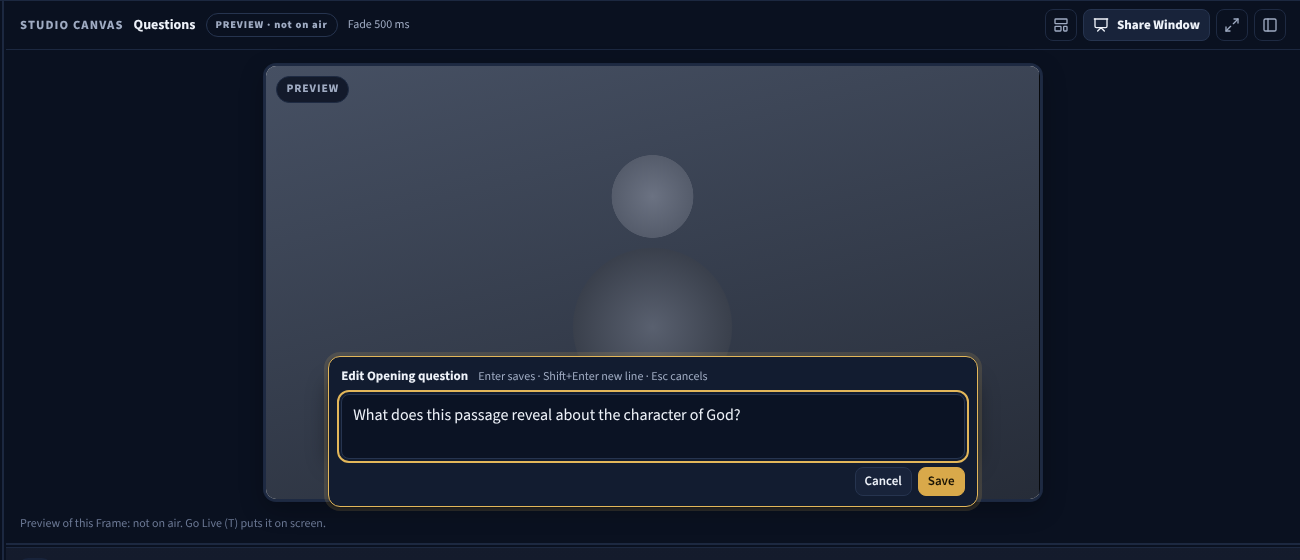
Tip: Found a typo while it is on screen? Double-click the card on the Studio Canvas, correct it and press Enter. The screen updates immediately. This works for every card: question, scripture, announcement, prayer, discussion topic, icebreaker, poll, lower third and timer. Double-click the card's label (its top line) to change the label.
Transitions
| Setting | Where | Effect |
|---|---|---|
| The Frame's transition | Content Settings → Frame → Timing → Transition into this Frame | How this Frame appears, for example Fade, Cross Dissolve, Dip to Black, Slide, Push, Cinema Fade or Church Service Fade |
| Duration | Same place | The length in milliseconds |
| One-off override | The command bar's transition list (Frame default) | Uses another transition for your next takes, until you set it back to Frame default |
| A card's own animation | Question / Scripture Content → Animation | How the card itself appears, for example Fade, Gentle rise, Word by word, Typewriter |
When something goes wrong: Hide all, Black screen, Emergency, Freeze
| Control | Key | What people see | Use it when |
|---|---|---|---|
| Hide all | Esc | The picture without any cards or text | You want a clean camera picture |
| Black screen | K | A black picture | You need the screen dark straight away |
| Emergency | — | A plain emergency screen with your message | Something urgent is happening in the room |
| Freeze | F | The picture held still | You are changing things and do not want people to see it |
| Hide Content | — | The selected Content is hidden | One item should go away, the rest stays |
Black screen, Emergency, Annotate, Freeze, the Teleprompter, the Teleprompter window and the Teleprompter overlay are in the Live tools menu. The menu button changes to Black screen on ▾, Emergency on ▾, Frozen ▾ or Drawing ▾ so you never forget one is on. Press the same control again to turn it off.
Important: Remember to unfreeze. While the picture is frozen, people do not see anything you change. The phone remote also shows a note while it is frozen.
Annotate: draw on the picture
Annotate works like ZoomIt: draw over whatever is on screen, slides and cards included. Everyone in Zoom, Teams and on the projector sees it.
- Press D, or choose Live tools → Draw on the picture.
- Pick a tool and draw on the Studio Canvas.
- Press Esc (or Done) to stop. The drawings are hidden.
| Tool | Key |
|---|---|
| Pen | P |
| Highlighter | H |
| Arrow | A |
| Line | L |
| Rectangle | R |
| Ellipse | E |
| Text | T |
There are six colours and three thicknesses. Undo is Ctrl+Z, Redo is Ctrl+Y, and Clear removes every drawing. You can draw on a frozen picture.
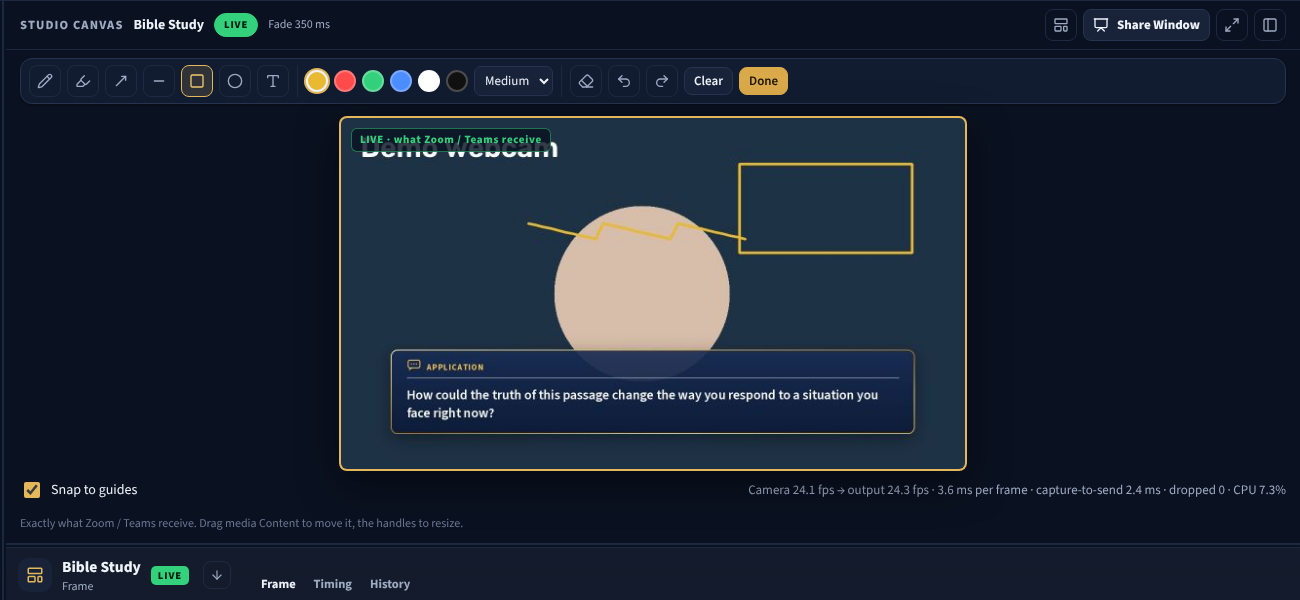
You can also draw with your finger on the phone. See Remote control.
Teleprompter
The Teleprompter shows what you plan to say on each Frame. Only you see it. It is never on the FrameDecks camera, the Presentation window, the OBS pages or the phone's drawing pad.
Write the script
- Each Frame has its own Teleprompter script: Content Settings → Frame → Teleprompter script (up to 20,000 characters). In 6.6 this field was called Leader notes.
- Or double-click the text in the Teleprompter (or select ✎) and type there.
- Simple markup, all optional:
| Type | You get |
|---|---|
# Heading |
A heading |
- bullet |
A bullet point |
**bold** · *italic* |
Bold · italic |
[PAUSE] |
A cue chip, such as a reminder to pause or pray |
--- |
A divider line |
Open it in the Studio
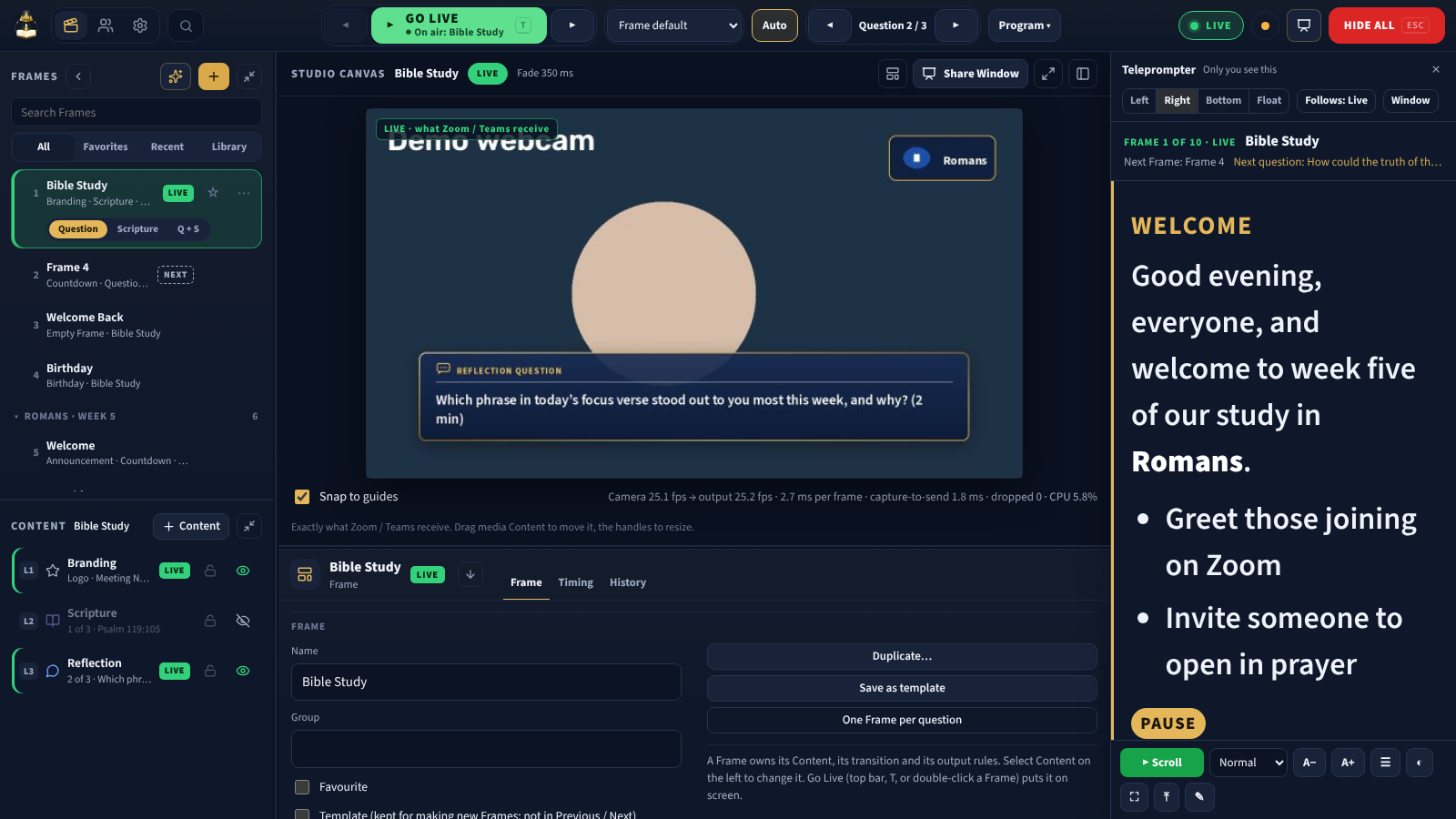
- Choose Live tools → Teleprompter → In this window, or press R.
- Dock it Left, Right or Bottom of the Studio, or Float it. Drag its edge to resize it.
- Follows: Live shows the script of the Frame on screen. Follows: Selected shows the Frame you selected, so you can read ahead or rehearse.
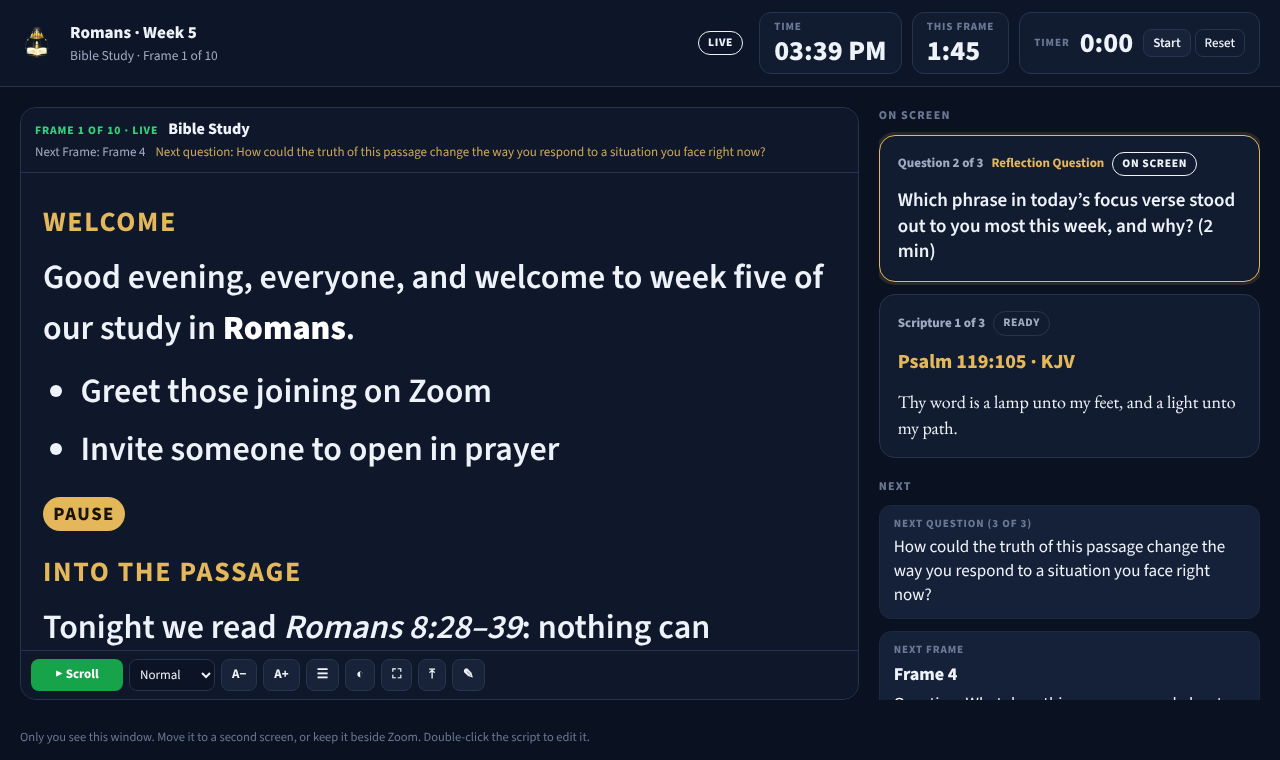
Open it in its own window Live tools → Teleprompter → Own window (called Speaker View in 6.6) opens the Teleprompter in a separate window, ideal on a second monitor or beside Zoom on a laptop.
- The script takes the whole width of the window.
- Select On screen & next to slide in the side panel with the clocks, a Timer, what is on screen now and what comes next. It is hidden at first, and the window remembers your choice.
- The controls float at the bottom and fade after a few seconds, as in the overlay. Move the mouse to bring them back.
- The ribbon at the top has the window buttons. Drag it to move the window.
- The Teleprompter window is left out of screen sharing, so Zoom participants do not see it.
To read your script on top of Zoom or Teams instead, use the Teleprompter overlay.
Controls
| Control | Key (while the Teleprompter has focus) |
|---|---|
| Scroll: play / pause | Space |
| Speed: Very slow, Slow, Normal, Fast, Very fast | — |
| Text smaller / larger (A− / A+) | − / + |
| Line spacing, high contrast | — |
| Focus mode | F |
| Mirror the text (for a teleprompter glass) | M |
| Back to the top | Home |
| Scroll by hand | ↑ ↓, Page Up / Page Down, the mouse wheel or touch |
The cue line at the top shows Frame 3 of 9, LIVE when that Frame is on screen, the next Frame, and the next question or scripture.
Note: Answers and presenter notes on questions and scriptures were removed in 6.7. Nothing was deleted from your data. Put what you want to remember in the Frame's Teleprompter script.
On the phone, the Teleprompter is on the remote too. See Remote control.
Teleprompter overlay (Meeting Leader mode)
The Teleprompter overlay shows your script in a see-through window that you place over Zoom, Teams or Google Meet. You read your script and still see the participants, shared screens and chat behind it. Only you see it.
Open it
- Live tools → Teleprompter → Over Zoom, or press Shift+R.
- In the docked Teleprompter, select Overlay in its header.
- From the tray icon near the clock: Teleprompter.
- From Spotlight or the command palette: type overlay.
The overlay shows the script of the Frame on screen. Before you go live, it shows the first Frame, so you can rehearse.
Choose how see-through it is
| Mode | Transparent | Key | Good for |
|---|---|---|---|
| Solid | 0 % | 1 | Reading only, nothing behind it |
| Presenter | 20 % | 2 | Mostly script, a hint of the meeting |
| Meeting | 40 % (the default) | 3 | Reading while you watch the participants |
| Conference | 65 % | 4 | Keeping a close eye on faces and shared screens |
| Ghost | 85 % | 5 | Short reminders over a busy screen |
The more see-through it is, the stronger the outline around the letters, so the text stays easy to read.
- Frosted glass blurs what is behind the overlay, so the text stands out. On Windows 11 (22H2 and later) it is Acrylic glass; on Windows 10 it is a plain blur.
- Stay on top (📌, or press P) keeps the overlay above Zoom, Teams, PowerPoint and browsers. The overlay remembers this and your other choices.
Note: The overlay is never shown in screen sharing or recordings, even when you share your whole screen (Windows 10 version 2004 or later). It is never on the FrameRelay camera either. The Teleprompter window and Spotlight are left out of screen sharing too.
The toolbar and the ribbon
The script takes nearly the whole width of the window. A small glass toolbar floats at the bottom and fades after about three seconds. Move the mouse to bring it back.
| Control | Key |
|---|---|
| Play / pause | Space |
| Speed | — |
| Text smaller / larger (A− / A+) | − / + |
| Line spacing, high contrast | — |
| Mirror the text (for a teleprompter glass) | M |
| Back to the top | Home |
| Edit the script (✎) | — |
| Transparency mode | 1 to 5 |
| Frosted glass | — |
| Stay on top (📌) | P |
| Exit | Esc |
A thin ribbon at the top, with the window buttons, appears with the toolbar. Drag the ribbon to move the overlay. Drag an edge to resize it.
Place it in Zoom or Teams
- Start the meeting and open the overlay (Shift+R).
- Drag it over the part of the meeting you need to see least, for example the lower part of the gallery or beside the shared screen. Keep it close to your camera so your eyes stay near the lens.
- Make it as small as you can still read comfortably. Use A− / A+ for the text.
- Start with Meeting (3). Go to Conference (4) if you need to see faces, or Presenter (2) if the text is hard to read.
- Check that Stay on top (📌) is on, then click into Zoom or Teams: the overlay should stay in front.
Important: With Light on graphics card on (the default), the overlay fades as a whole, text included. For solid text over a see-through background, turn off Settings → General → Performance → Light on graphics card and restart FrameDecks. If your meeting does not show through on your PC, turn on Compatibility transparency in Settings → General → Window and tray: the whole window then fades.
You can set the overlay's starting transparency, frosted glass, stay on top and compatibility transparency in Settings → General → Window and tray.
Note: In a web browser (not the installed app), the overlay cannot be see-through or stay on top.
Command palette
The command palette finds anything and does most things, from the keyboard.
- Press Ctrl+K or Ctrl+Space. (Since 6.9 the command bar has no search box: the palette and Spotlight are where you search.)
- Type a few letters. It finds Frames, Content, the Frames' questions and scriptures, text, templates, the Library, branding, settings, members, Bible references and recent items.
- It also runs commands, such as Go Live, New Frame, Duplicate, Teleprompter, Export meeting, switching the theme or Add Content….
- Use ↑ / ↓ to choose and Enter to open or run it. Esc closes the palette.
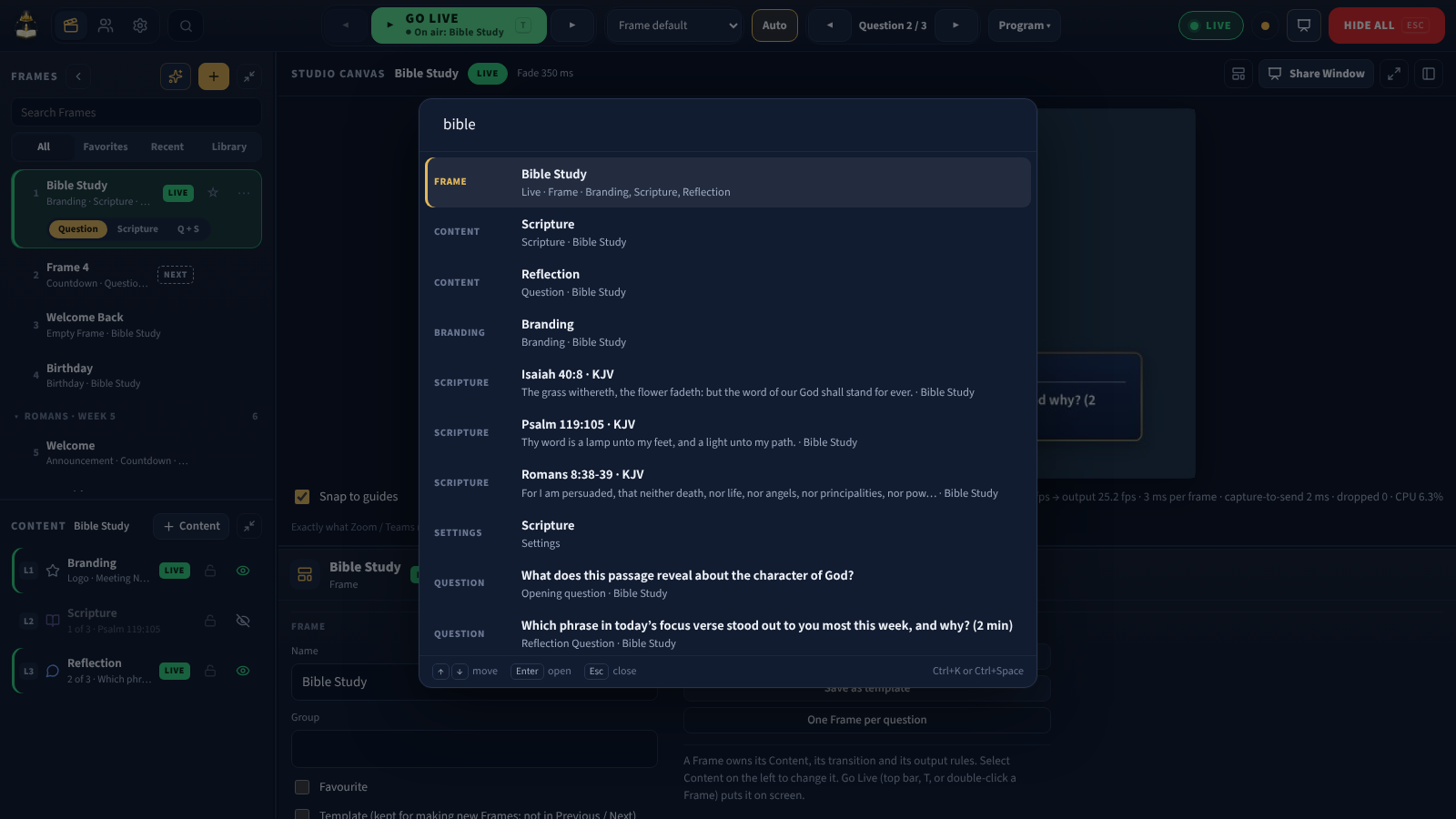
You can change the keys in Settings → Keyboard shortcuts → Command palette.
Spotlight
Spotlight is the command palette for the whole of Windows. It works when another program is in front, and when FrameDecks is hidden in the tray.
- Press Alt+Space anywhere. Spotlight opens in the middle of the screen where your mouse is, above everything.
- Type, then choose with ↑ / ↓ and Enter. It finds the same things as the command palette.
- Esc, or a click somewhere else, closes it.
With an empty search, Spotlight shows Recent, Frequently used and Suggested items.
Go Live, Next / Previous Frame, Hide all, Black screen, Freeze, the Teleprompter window and the Teleprompter overlay run without bringing the main window back. Everything else opens the main window.
If another program already uses Alt+Space (for example PowerToys Run), FrameDecks uses Ctrl+Alt+Space instead. Settings → General → Window and tray → Spotlight shows which shortcut works. You can choose Alt+Space, Ctrl+Space, Ctrl+Alt+Space, Ctrl+Shift+Space, Win+Shift+K, or Off.
Note: Alt+Space normally opens the window menu of the program in front. If you need that menu, choose another Spotlight shortcut.
Projector, TV and screen sharing
The Presentation window shows the same finished picture as the FrameRelay camera.
- In the Studio, select Share Window. The Presentation window opens.
- Drag it to the projector or TV, then select ⛶ Full screen (or press F in that window, or double-click it).
- To leave full screen, select ⛶ Full screen again (move the mouse to show the buttons).
Important: Esc inside the Presentation window closes it (✕ Exit). Press Esc in the main FrameDecks window instead when you mean Hide all.
To share it in Zoom instead, choose Share Screen, then the window named FrameDecks Share Window.
Note: Media Content (camera, images, video, PowerPoint, screen and window sharing) is part of the FrameDecks picture, so turn on the FrameRelay camera in Settings → How people see it → FrameRelay Camera if you use it.
Keyboard shortcuts
Shortcuts work while the FrameDecks window has focus, and never while you type in a box. Spotlight's shortcut is the exception: it works everywhere. You can change the meeting shortcuts in Settings.
| Key | Action |
|---|---|
| T | Go Live on the selected Frame |
| ] / [ | Next / previous Frame |
| → / ← | Next / previous question |
| Shift + → / Shift + ← | Next / previous scripture |
| Q · V · B | Show or hide the question · scripture · birthday card |
| Page Down / Page Up | Next / previous slide |
| Esc | Hide all |
| K | Black screen on / off |
| F | Freeze on / off |
| D | Annotate on / off |
| R | Teleprompter on / off |
| Shift + R | Teleprompter overlay on / off |
| 1 to 5 | Overlay transparency: Solid, Presenter, Meeting, Conference, Ghost (in the overlay) |
| M | Mirror the text (in the Teleprompter or the overlay) |
| P | Stay on top on / off (in the overlay) |
| Ctrl + K or Ctrl + Space | Command palette |
| Alt + Space | Spotlight, from anywhere in Windows (you can change it in Settings) |
| F2 | Rename the selected Frame or Content |
| Ctrl + D | Duplicate the selected Frame or Content |
| Ctrl + C · Ctrl + X · Ctrl + V | Copy · cut · paste the selected Frames or Content |
| Ctrl + A | Select every Frame (or every Content) in the list |
| Delete / Backspace | Delete the selected Frames or Content (Undo is offered) |
| Alt + 1 / 3 / 4 | Studio / Members / Settings |
Live-safety tips
- Rehearse once on the same PC, room and network.
- Check the badge before you edit: PREVIEW is safe, LIVE is public.
- Keep Esc in mind. It hides everything instantly.
- Silence notifications on the presentation PC (Windows Focus / Do not disturb).
- Close what you do not need. Fewer apps means smoother video.
- Charge the phone you use as a remote, and keep the PC plugged in.
- Name your Frames clearly, so whoever runs the service knows what comes next.