
Run the service from a phone or iPad: step through Frames and Content, draw on the picture, freeze or black out the screen.
Who this is for: service operators, remote operators and leaders who want to move freely while presenting.
On this page
- How it works
- Set up the remote
- Security
- Simple remote
- Advanced remote
- Teleprompter on the phone
- Drawing from the phone
- Run-through mode
- iPad and tablet layout
- Add it to your home screen
- Tips for remote operators
- If the phone can't connect
How it works
The remote is a web page served by FrameDecks on your PC. Your phone opens it over your church's (or home's) Wi-Fi. Nothing goes through the internet or any outside service.
Every button on the phone changes the same live state as the PC, so the PC, the phone and everyone watching always agree.
Set up the remote
- On the PC, open Settings → Phone & iPad Remote and turn the remote on.
- The first time, Windows Firewall asks about network access. Tick Private networks only, then select Allow.
- On the phone, join the same Wi-Fi network as the PC.
- Scan the QR code shown in Settings with the phone's camera, or type the address shown there (it looks like
http://192.168.1.20:8750). - Enter the 6-digit PIN shown in Settings.
The phone stays signed in for 30 days. After that, or after a new PIN, enter the PIN again.
Tip: In the same Settings section, tick the option to turn the remote on whenever FrameDecks starts, so it is ready every Sunday.
Security
| Protection | What it means |
|---|---|
| 6-digit PIN | Only people who know the PIN can control the service |
| Same network only | The remote works on your local network; it isn't reachable from the internet |
| Lockout | After 5 wrong PINs, that device must wait 60 seconds before trying again |
| New PIN | Settings → Phone & iPad Remote → New PIN signs out every phone and iPad at once |
| PC-only settings | Phones can't open Settings, member lists, the Scripture API key or the FrameRelay camera settings |
| Live picture | The picture on the phone's drawing pad is PIN-protected, like the rest of the remote |
Important: Treat the PIN like a key to the sound desk. Share it only with the people running the service, and choose New PIN if it has been shared too widely.
Simple remote
The Simple remote is the default. It has one screen with very large buttons, so a volunteer can use it without training.
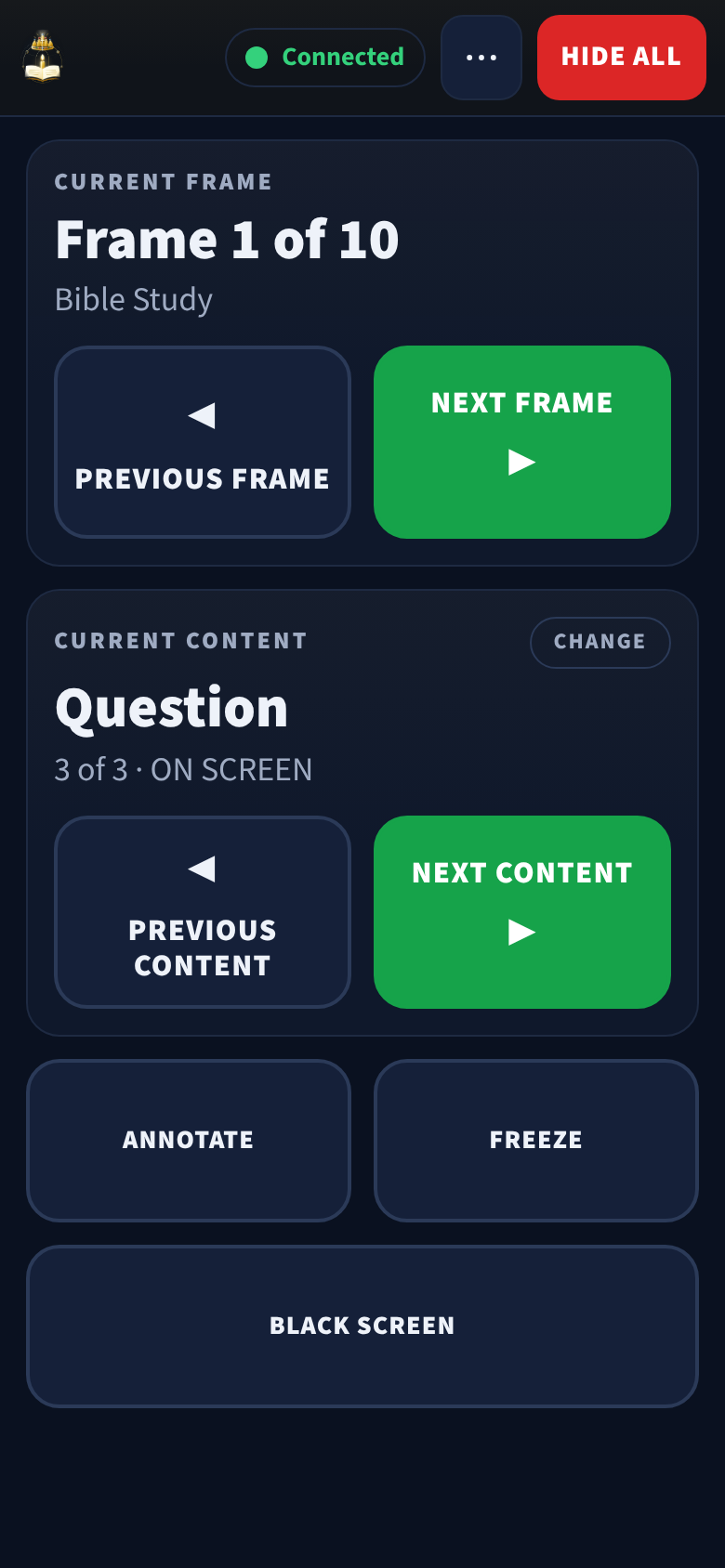
| Part | What it does |
|---|---|
| Connected | The connection status, always visible at the top |
| HIDE ALL | Hides everything on screen at once |
| Current Frame (Frame 4 of 18) | Where you are in the meeting |
| PREVIOUS FRAME / NEXT FRAME | Move through the Frames, in order |
| Current Content (Question 2 of 5, Scripture, PowerPoint · Slide 3 of 12) | What is showing in this Frame |
| CHANGE | Appears when a Frame has more than one kind of Content (for example questions and scriptures). Switches which one the buttons below control |
| PREVIOUS CONTENT / NEXT CONTENT | Step through questions, scriptures or slides |
| ANNOTATE | Opens the drawing pad |
| FREEZE | Holds the picture while you get the next thing ready |
| BLACK SCREEN | Makes the picture black. Select it again (SHOW PICTURE) to bring it back |
| TELEPROMPTER | Opens the Frame's Teleprompter script full screen, on this phone only |
Advanced remote
Open the ⋯ menu and choose Advanced remote for more control:
- every Frame in a list, with search across Frames and Content;
- the Frame's Content (tap to show or hide each one);
- a Teleprompter panel on the Live tab, visible only on the phone;
- PowerPoint slide control;
- Run-through mode (below);
- Annotate, Freeze, Blackout and Emergency.
The choice is remembered on that phone. Switch back to Simple from the same menu.
Teleprompter on the phone
The phone can show the Frame's Teleprompter script, the same one you see on the PC. Only the phone shows it; nobody watching sees it.
- Simple remote: select TELEPROMPTER. The script opens full screen.
- Advanced remote: open the Teleprompter panel on the Live tab.
Scroll with your finger, or use the play button to scroll by itself. See Presentations for how to write the script.
Drawing from the phone
- Select ANNOTATE. The drawing pad opens with the live picture, exactly what Zoom, Teams or the projector shows.
- Choose a tool (Pen, Highlight, Arrow, Box, Circle) and a colour.
- Draw with your finger. The drawing appears on screen when you lift your finger.
- Undo removes the last drawing; Clear removes them all.
- Select Done to close the pad and hide the drawings.
Tip: Turn the phone sideways. The picture then fills the screen and the tools move to a narrow column at the side, so you can draw more accurately. On Android the browser bars hide too; iPhone Safari keeps them.
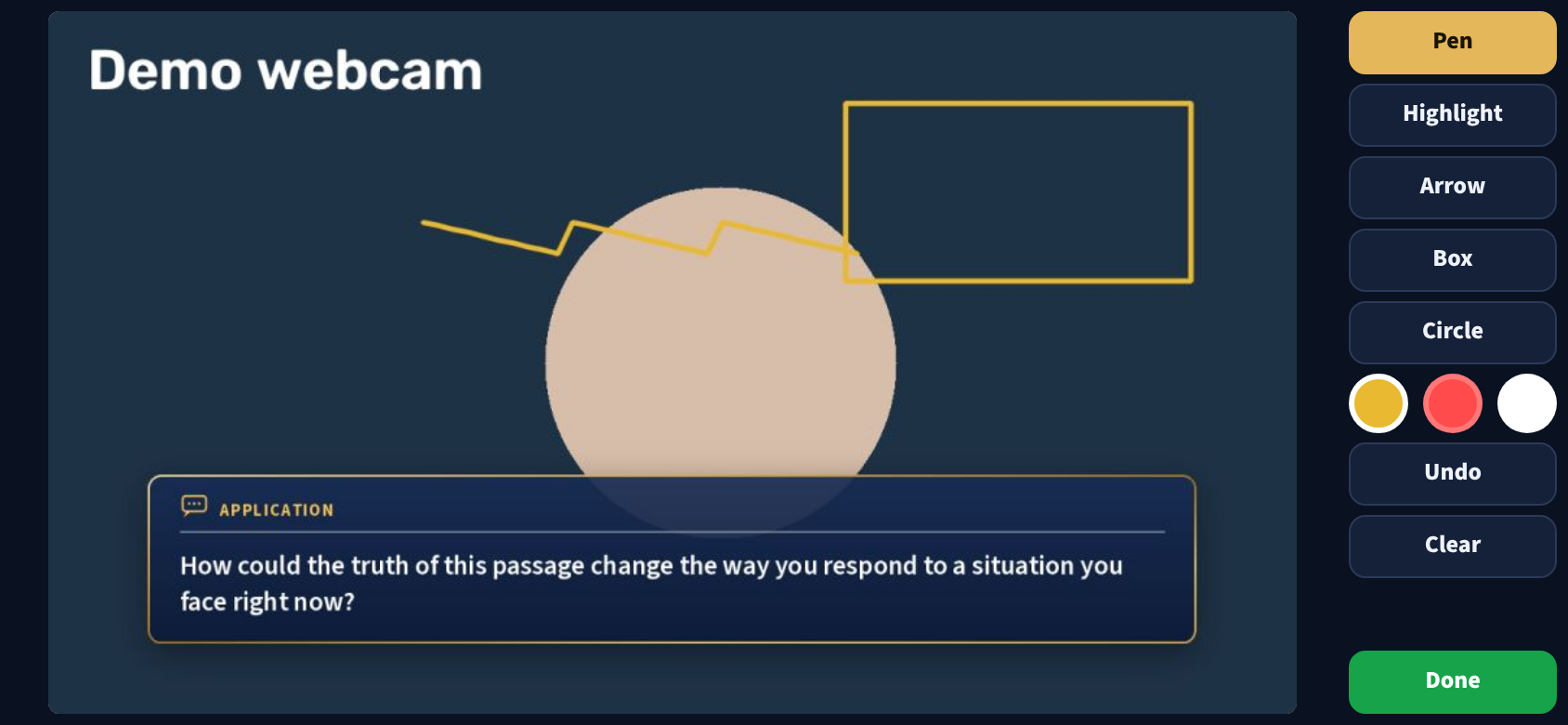
While the pad is open, the phone gets a sharper picture (960 pixels wide). If the FrameRelay camera is off, the pad shows the Frame's cards instead, so you are never drawing on a black box.
Run-through mode
In the Advanced remote, Run-through lets you step through Frames on the phone without changing what everyone sees. The phone's preview follows your steps; the screen does not. Use it to rehearse, or to check what is coming next during a long talk. Turn it off to control the screen again.
iPad and tablet layout
On an iPad or a large tablet, the Advanced remote shows the Frames, the Content and the controls side by side, so you can see the whole meeting at once. The Simple remote stays a single, centred column of large buttons.
Add it to your home screen
- iPhone / iPad (Safari): Share → Add to Home Screen. It opens full screen, like an app, named FrameDecks.
- Android (Chrome): ⋮ → Add to Home screen (or Install app).
The icon opens the remote directly. You still need to be on the same Wi-Fi as the PC.
Tips for remote operators
- Charge the phone fully, and turn on Do Not Disturb so notifications don't cover the buttons.
- Set the phone to stay awake (screen timeout off, or as long as possible) during the service.
- Check the Connected status before the service starts and after any Wi-Fi change.
- Use FREEZE before switching windows or files on the PC, then unfreeze when ready.
- If something unexpected appears, select HIDE ALL first, then work out what happened.
If the phone can't connect
| Cause | Fix |
|---|---|
| The remote is off | Settings → Phone & iPad Remote → turn it on |
| The phone is on a different network (mobile data, guest Wi-Fi) | Join the same Wi-Fi as the PC. Guest networks often block devices from seeing each other |
| Windows Firewall blocks it | On the PC, run tools/launchers/Allow iPad Remote - run once.bat once, or allow the app for Private networks |
| The network is set to Public in Windows | Settings → Network & internet → your Wi-Fi → Private network |
| Wrong PIN too many times | Wait 60 seconds, then try again |
| The PC's address changed | Scan the QR code in Settings again |
More answers: Troubleshooting.