
How to prepare a meeting in FrameDecks so the service runs smoothly: Frames, Content, slides, videos and scripture.
Who this is for: media team members who build the meeting before the service.
On this page
- Your responsibilities
- Five things to know
- Building the meeting
- Before the service
- During the service
- After the service
- When something goes wrong
- Getting started in this role
Your responsibilities
- Turn the leader's plan into Frames and Content.
- Prepare media: pictures, videos, PowerPoint decks, song words.
- Fetch or type every scripture.
- Check everything on the Studio Canvas before the day.
- Keep the PC tidy: files on the PC, backups made.
Five things to know
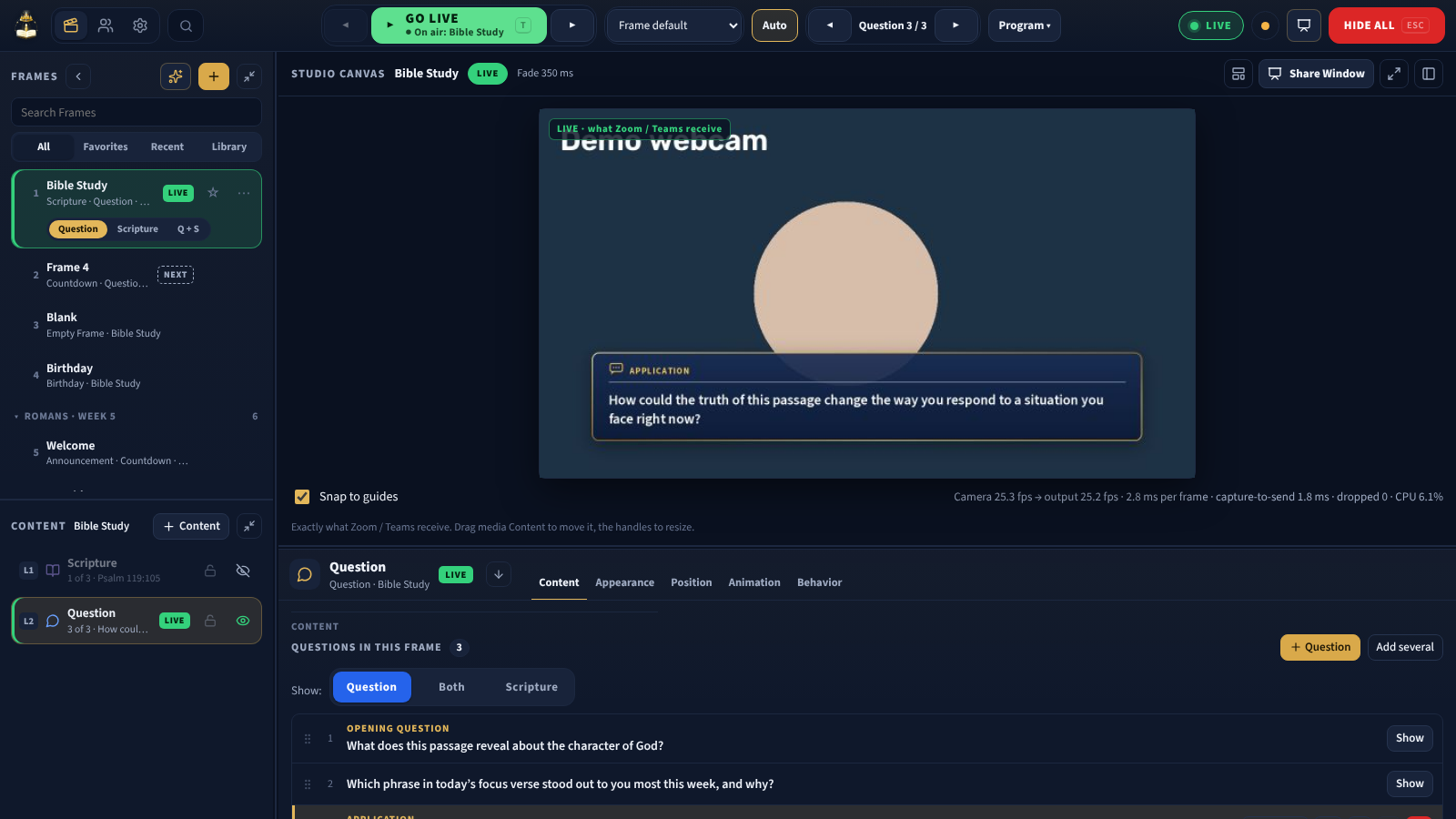
- + Frame, then + Content. + Frame adds a blank Frame after the selected one; select it, then + Content to add a Question, Scripture, Text, Discussion topic, Icebreaker, Poll (show of hands), Image, Video, Timer or PowerPoint.
- Every Frame owns its Content. Changing a question in one Frame never changes another. Duplicate makes a fully separate copy.
- Content Settings has everything. One panel, most used first: Label, Content, Display Settings (with Animation and Show on), Visual Settings; Media for pictures, video and slides.
- FrameDecks keeps copies of your files. Added pictures, videos and slides keep working if the originals move.
- Excel is optional. The Meeting Workbook builds a whole meeting from a spreadsheet; the app is the source of truth after import.
Building the meeting
- Make one Frame per part of the service, in order. Name each one clearly (double-click its name, type, Enter): Welcome, Worship 1, Reading, Discussion, Closing.
- Add Content to each Frame:
- Question: add questions to its list; double-click a question's label or text to edit it in place.
- Scripture: type a reference and Fetch scripture (ESV), or choose Fetch from → Type it myself.
- Text: announcements, song words (one Frame per verse or chorus), prayer points.
- PowerPoint: a .pptx or PDF; set Start at slide if needed.
- Video / Image: choose the file, then place it.
- Timer: a countdown before the service starts.
- Discussion topic, Icebreaker, Poll (show of hands): ready-made text cards; double-click the card on the canvas to change the words. The Poll only shows the choices; nothing is counted.
- Arrange the order of questions or scriptures by dragging them, or with ↑ / ↓.
- Check the look in Display Settings and Visual Settings (position, width, text size, opacity).
- Paste the leader's talking points into each Frame's Teleprompter script (Content Settings → Frame) if they send them. Only the leader sees it, in the Teleprompter, the Teleprompter window or the see-through Teleprompter overlay over Zoom or Teams. Read it once in the overlay (Shift+R) to check that the lines are not too long for a small window.
- To change several Frames at once, Ctrl+Click or Shift+Click them, then copy (Ctrl+C), paste (Ctrl+V), duplicate (Ctrl+D) or delete them. Ctrl+K finds any Frame, question or setting.
- For the Branding badge, choose Logo only / Name only / Logo + Name, a corner, size and plate in its Content Settings. If the logo has a white box around it, use Remove background (Settings → Meeting & Branding).
See Content and Media for every option.
Before the service
- Every Frame checked on the Studio Canvas (select it; the canvas shows a preview without going on air).
- Every scripture has its text (fetched ones are kept on the PC for offline use).
- Every PowerPoint opens and its slides look right.
- Videos play; their sound plan agreed with the sound team (FrameDecks doesn't carry audio).
- Spelling checked; double-click any card on the canvas to correct it.
- Settings → Data / Backup → Back up now.
During the service
Usually the service operator runs the controls. Stay available to:
- fix a typo (double-click the card on the canvas, correct, Enter);
- add a last-minute Text Content (a prayer request, a notice);
- find a file or slide the leader asks for. Alt+Space opens Spotlight from anywhere in Windows, even with FrameDecks in the tray; type a few letters of the Frame, question or setting.
Important: Avoid editing the Frame that is live unless you must: changes to it appear on screen as soon as they are saved.
After the service
- Back up now.
- Save reusable Frames as templates (Save as template in Content Settings → Frame).
- Export the meeting to Excel if it should be kept or shared (Meeting menu → Export this meeting to Excel).
When something goes wrong
| Situation | Fix |
|---|---|
| A PowerPoint won't convert | Save it as PDF and add the PDF. See Troubleshooting |
| A scripture won't fetch | Use Type it myself and paste the text |
| Wrong content went on screen | Operator: Hide all (Esc); then fix the Frame |
| An Excel import went wrong | Meeting menu → Undo the last Excel import |
Getting started in this role
- Read Getting started, Frames and Content.
- Rebuild last week's service from scratch as practice.
- Shadow one service build, then build one with help, then alone (onboarding plan).
Related
- Service planning
- Content
- Media
- Meeting Workbook and branding
- Church operations