
Your first fifteen minutes with FrameDecks: install it, find your way around, build a meeting and put it on screen.
Who this is for: anyone opening FrameDecks for the first time, such as a small-group leader, a worship leader or a media volunteer.
On this page
- What FrameDecks is
- Before you start
- First launch
- A tour of the window
- Build your first meeting
- Go Live and step through
- Add your phone (optional)
- Your first Sunday checklist
What FrameDecks is
FrameDecks is a presentation app for services, Bible studies, prayer meetings and small groups. It runs on one Windows PC. It needs no accounts and no cloud, and it works without internet.
You build a Meeting (your service or meeting) out of Frames. A Frame is one screen or one step, such as Welcome, Scripture Reading, Discussion or Closing. Each Frame holds Content: a question, a scripture, a timer, an image, a video, a PowerPoint and more.
When the meeting starts, you press Go Live and step from Frame to Frame. What you show appears on:
- FrameDecks, a camera you choose in Zoom, Microsoft Teams, Google Meet or OBS (your webcam with your Content on top);
- the Presentation window, which you can share in Zoom or show full screen on a projector or TV;
- OBS / browser overlay pages at
http://localhost:8750/..., for setups that use OBS.
Before you start
You need:
- a Windows 10 or Windows 11 PC (64-bit);
- the FrameDecks installer. See Installation.
A webcam is optional. You need one only if people should see you on the FrameRelay camera.
First launch
- Open FrameDecks from the desktop icon.
- If you used the zip version of FrameDecks before, the app offers to import your existing data. Choose your old folder (it is usually found automatically) and select Import. Your old folder is not changed. (An installed earlier version needs nothing: the installer updates it and your data is kept.)
- The app opens on the Studio, where you build and run meetings.
- On a new PC the Setup guide opens at the right: seven steps from choosing your kind of gathering to "Ready". Each step ticks itself when FrameDecks sees it is done (a phone connected, Practice used, every line of Before you start green). Show me how dims the window and points at the button to press. Skip it any time; it comes back from Settings → About → Guided tour or the command palette (Ctrl+K, "Setup guide").
Note: Everything you do is saved automatically on this PC. There is no Save button to remember.
A tour of the window
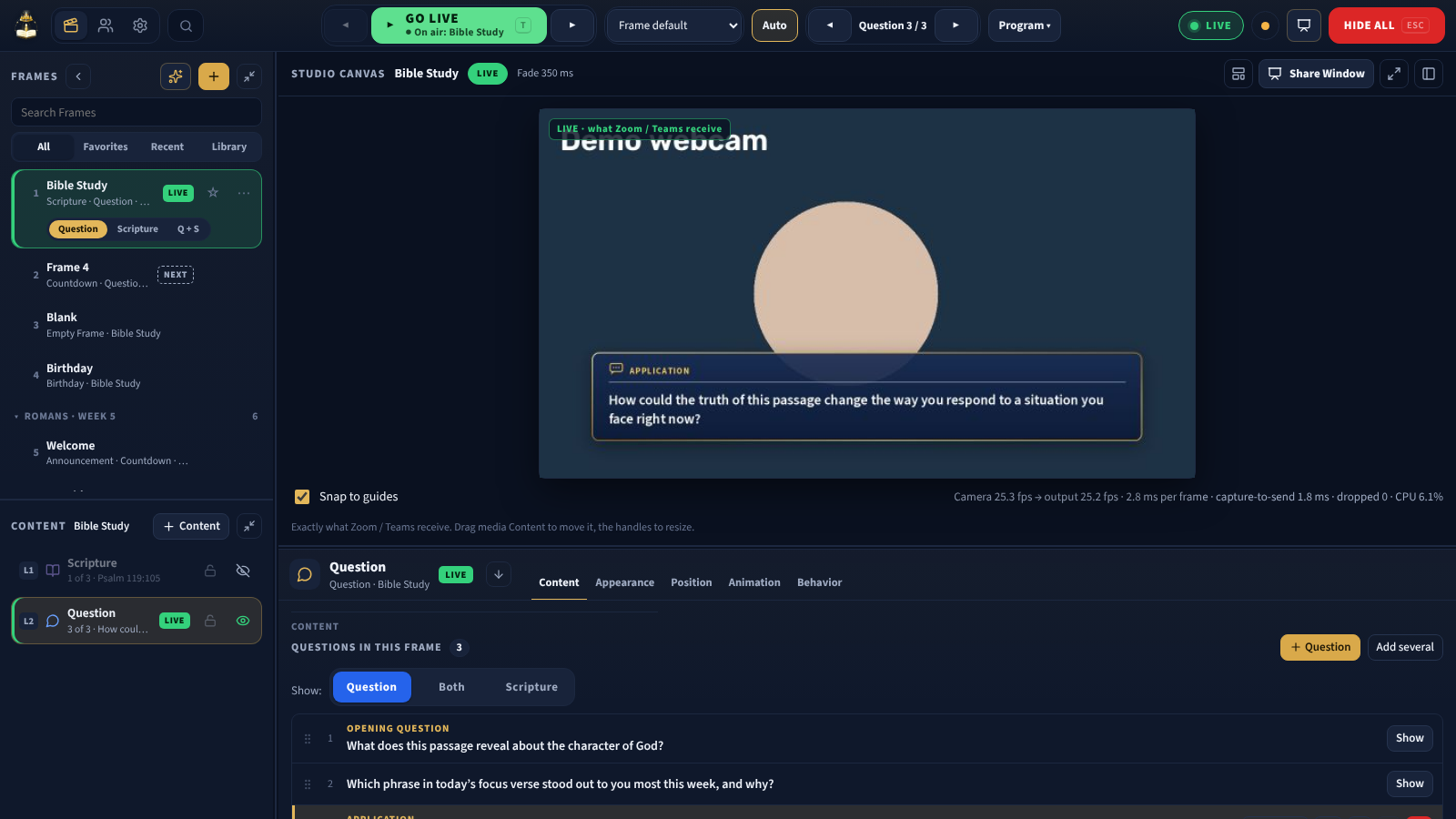
The Studio, shown with the built-in test camera ("Demo webcam") instead of a real webcam.
| Area | Where | What it does |
|---|---|---|
| Command bar | Across the top | Studio · Members · Settings (Alt+1, Alt+3, Alt+4), ◀ Frame · Go Live · Frame ▶, transitions, the question and scripture steppers, the Program menu, Hide all (with its Esc key) and the LIVE status |
| Frames | Left, top | Every Frame in your meetings, in order. The live Frame is marked LIVE, the next one NEXT |
| Content | Left, bottom | The Content inside the selected Frame. The top of the list is in front |
| Studio Canvas | Middle | A preview of the selected Frame, or the live picture. The badge says PREVIEW · not on air or LIVE |
| Content Settings | Below the canvas | Every setting for what you selected, most used first: Label, Content, Display Settings, Visual Settings (a Frame has Frame, Timing and History) |
Tip: The canvas badge is your safety check. PREVIEW · not on air means nobody sees what you are editing.
To find anything, press Ctrl+K (or Ctrl+Space) for the command palette. The command bar has no search box. On a narrow window (under 1140 px wide) the command bar wraps onto two rows, so every button stays visible.
The window buttons and the tray
FrameDecks has no Windows title bar. The command bar at the top is the window's ribbon:
- drag an empty part of it to move the window, and double-click it to maximize;
- Snap (dragging to a screen edge, or Windows key + arrows) and resizing from the edges work as usual;
- Minimize, Maximize / Restore and Close are at the top right of every FrameDecks window.
The first time you select Minimize, the app asks Hide application to system tray?
- Hide To Tray removes the taskbar button. The icon stays in the tray near the clock.
- Stay In Taskbar minimizes as usual.
Tick Remember my choice to stop the question. You can change it later in Settings → General → Window and tray → Minimize button. In the tray, everything keeps working: the camera, the overlays, the phone remote and the shortcuts. Click the tray icon, or choose Open App in its menu, to bring the window back.
Tip: Press Alt+Space anywhere in Windows to open Spotlight, a search box that finds and runs anything in FrameDecks, even from the tray. See Spotlight.
If you prefer the Windows title bar, turn off Modern window in Settings → General → Window and tray and restart.
Build your first meeting
There are two quick ways to start.
Option A: Quick Start (fastest)
- Select the ✨ Meeting button next to + Frame.
- Choose Quick Start….
- Pick what you are leading, for example Sunday Service or Bible Study.
- A complete set of Frames appears in its own group. Change any of them; nothing is on screen until you press Go Live.
Option B: Build it yourself
- Select + Frame. A blank Frame appears after the selected one.
- Double-click its name (or press F2), type a name such as Discussion, and press Enter.
- With the Frame selected, select + Content and choose Question.
- Type your first question in the editor and select Done. Add more with + Question, or paste many at once with Add several.
- Repeat for the other parts of your meeting: a Scripture, a Timer, a Text welcome and so on.
Tip: To change a question quickly, double-click the card on the Studio Canvas and type. Enter saves, Esc cancels. This works on any card, and on its label (the top line).
See Service planning, Frames and Content for more.
Go Live and step through
The top bar has two modes. Prepare is for planning and editing. Run is for the service itself: it shows the running order, what is on screen, what is Up next and a short Before you start checklist, and nothing can be edited by accident. Switch back to Prepare at any time.
- Select Run, then the first Frame.
- Select Go Live (or press T). The badge turns to Live and Hide all turns red: something is on screen.
- Move through the meeting:
- Next ▶ (or ]) goes to the next Frame; ◀ Previous (or [) goes back;
- → / ← step through the Frame's questions;
- Shift + → / ← step through its scriptures.
- When you need a clean screen, press Esc (Hide all).
Practise first. In Run, tick Practice mode: your audience sees a black screen while you try Go Live, Next and Hide all, and your own preview still shows everything. Untick it (or select Stop practising) when you are ready. Not sure how people will see your meeting? Settings → How people see it offers three ways: FrameRelay in Zoom or Teams, the Share Window, or a projector, TV or OBS. The words FrameDecks uses are in the glossary.
See Presentations for transitions, Black screen, Freeze, Annotate, the Teleprompter, the Teleprompter overlay, the command palette and Spotlight.
Add your phone (optional)
Your phone can run the whole meeting: next Frame, next question, Annotate, Freeze and Black Screen.
- Open Settings → Phone & iPad Remote and turn it on.
- The first time, Windows Firewall asks about network access. Tick Private networks only, then Allow.
- Scan the QR code with your phone and enter the PIN shown.
See Remote control.
Your first Sunday checklist
Do this once, a day or two before your first real meeting.
- The app opens and shows your meetings.
- In Zoom, Teams or Meet, the camera FrameDecks is listed and selected (restart the meeting app after installing).
- You can Go Live on your first Frame and step to the last one.
- Your questions and scriptures read correctly on the canvas. Fix typos by double-clicking a card.
- Hide all (Esc) and Black screen (K) work.
- If you use a projector: Share Window opens the Presentation window and it fills the projector screen.
- If you use your phone: it connects, and NEXT FRAME works.
- You know where the Teleprompter is (Live tools → Teleprompter → In this window, or R) if you want your script in front of you. Only you see it. On Zoom or Teams, try the Teleprompter overlay (Shift+R) over the meeting.
- Do a 10-minute rehearsal with one other person on a test Zoom call.
Important: Rehearse on the same PC, network and room you will use on the day. Most problems are found in the first rehearsal, not during the service.