
How to run a service, or draw on the screen, from a phone or iPad with the FrameDecks remote.
Who this is for: anyone controlling the service from a phone or tablet, in the room or nearby.
On this page
- Your responsibilities
- Five things to know
- Before the service
- During the service
- After the service
- When something goes wrong
- Getting started in this role
Your responsibilities
- Step through Frames and Content in time with the leader.
- Draw on the picture when asked (circle a word, underline a phrase).
- Keep an eye on the connection and hand back to the PC if needed.
Five things to know
- Simple or Advanced. The Simple remote has big buttons for Frames and Content. ⋯ → Advanced remote adds search, a Teleprompter panel, slides and Run-through.
- CHANGE switches between questions, scriptures and slides when a Frame has more than one.
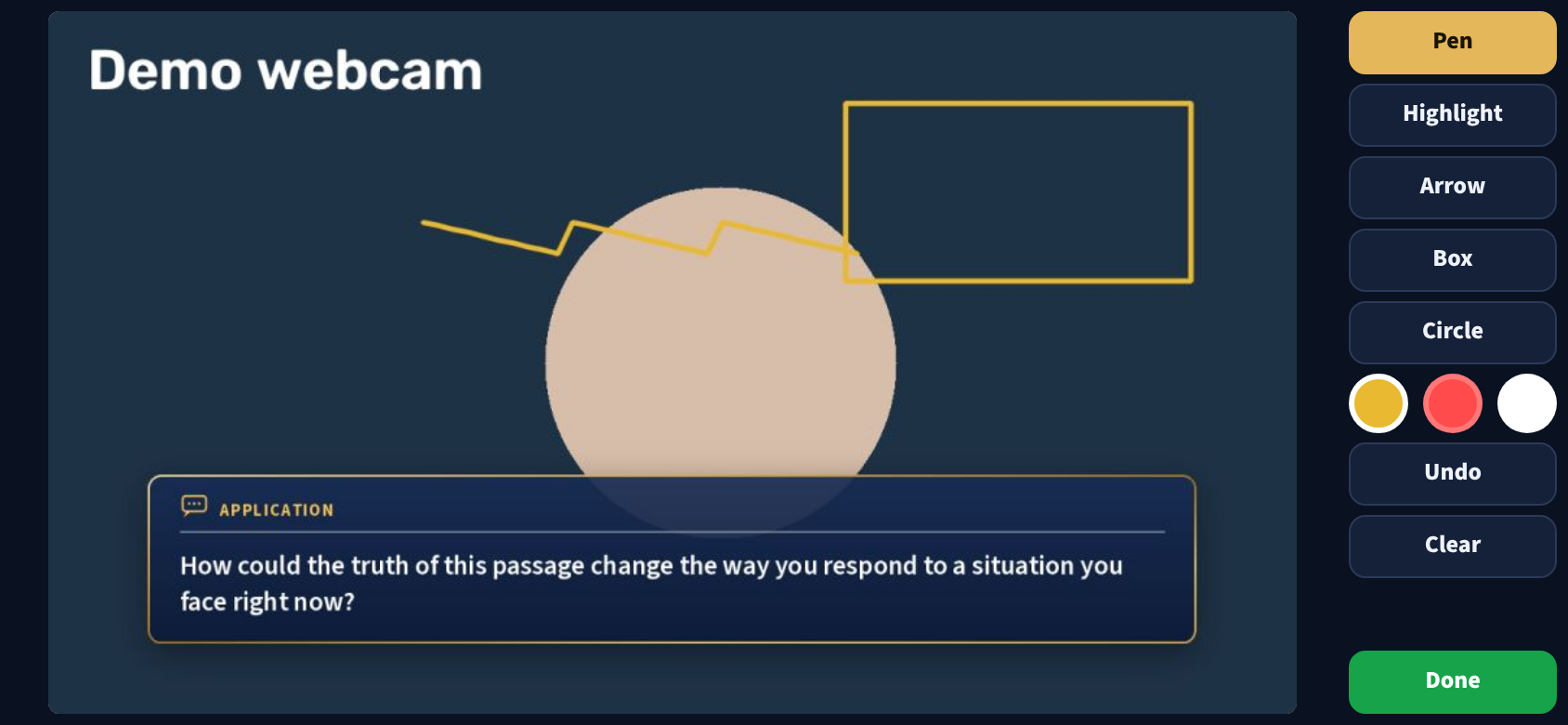
- ANNOTATE shows the live picture; draw with your finger, and it appears on screen when you lift it. Turn the phone sideways for a full-screen picture.
- Run-through (Advanced) lets you look ahead on the phone without changing the screen.
- HIDE ALL is always at the top right.
Before the service
- Phone charged (or on a charger); Do Not Disturb on; screen stays awake.
- On the same Wi-Fi as the PC; remote open and showing Connected.
- Agreed with the service operator who controls Next.
- Tried ANNOTATE once: draw, Undo, Done.
- Used Run-through to check the order of the Frames.
During the service
- Follow the leader's pace; glance at Current Frame and Current Content to stay oriented.
- When drawing, use short, simple marks; Undo removes the last one; Done hides all drawings.
- If you help lead the discussion, read the Frame's script: TELEPROMPTER in the Simple remote (full screen), or the Teleprompter panel on the Advanced remote's Live tab. Only you see it.
After the service
- Select Done if the drawing pad is still open, so drawings are hidden.
- Tell the service operator about any connection drops.
When something goes wrong
| Situation | Do this |
|---|---|
| Wrong item on screen | HIDE ALL, then step to the right item |
| Pressed Next too early | PREVIOUS CONTENT or PREVIOUS FRAME |
| Screen must go dark | BLACK SCREEN (press SHOW PICTURE to return) |
| "Not connected" | Check Wi-Fi; tell the operator, who carries on from the PC. See Remote control |
| Drawing pad shows only cards | The camera is off or starting; you can still draw |
| Locked after wrong PINs | Wait 60 seconds, then enter the PIN from Settings |
Getting started in this role
- Read Remote control.
- Connect your phone and practise with Run-through during the week.
- Follow the three-week onboarding plan.