
How to run the FrameDecks PC during a service: setup, presenting, and calm recovery when something goes wrong.
Who this is for: the person at the PC (or "booth") during the service.
On this page
- Your responsibilities
- Five things to know
- Keyboard shortcuts
- Before the service
- During the service
- After the service
- When something goes wrong
- Getting started in this role
Your responsibilities
- Start and check the PC, FrameDecks, the meeting app, the camera and the projector.
- Put each Frame on screen at the right moment and step through its Content.
- Keep the screen clean and recover quickly from mistakes.
- Back up after the service.
Five things to know
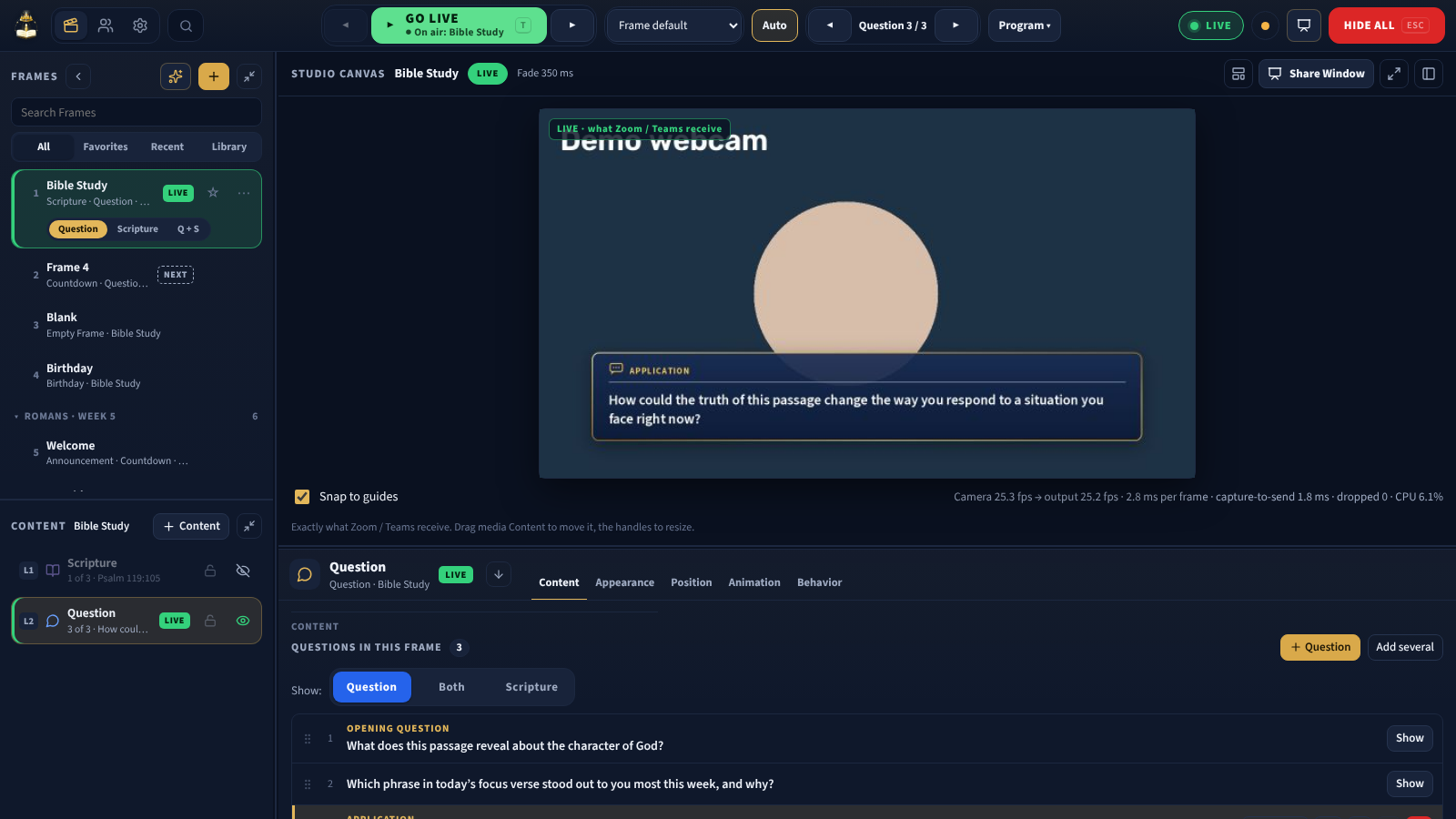
- Selecting a Frame does not put it on air. The Studio Canvas shows a PREVIEW. Go Live (T) puts it on screen; the badge then reads LIVE.
- ◀ Frame / Frame ▶ in the command bar move to the previous or next Frame and put it on screen.
- ◀ Question ▶ (or the arrow keys) step through the live Frame's questions; Shift + arrows step through its scriptures; Page Up / Page Down step through slides.
- The Live tools menu is your safety kit: Hide Content, Black screen (K), Emergency, Annotate (D), Freeze (F), Teleprompter (R), Teleprompter window, Teleprompter overlay (Shift+R).
- Hide all (Esc) clears everything and deletes nothing.
Keyboard shortcuts
| Key | Action |
|---|---|
| T | Go Live with the selected Frame |
| → / ← | Next / previous question |
| Shift + → / ← | Next / previous scripture |
| Page Down / Page Up | Next / previous slide |
| K | Black screen |
| F | Freeze |
| D | Annotate |
| Esc | Hide all (or stop annotating) |
| R | Teleprompter on / off (only you see it) |
| Shift+R | Teleprompter overlay on / off (see-through, over Zoom or Teams; only you see it) |
| Ctrl+K or Ctrl+Space | Command palette: find Frames, Content, questions, references, settings; run commands such as Go Live |
| Alt+Space | Spotlight: the same search from anywhere in Windows, even with FrameDecks in the tray |
Shortcuts are ignored while you type in a box. Shortcut keys can be changed in Settings. Spotlight's shortcut is set in Settings → General → Window and tray; if another program uses Alt+Space, it is Ctrl+Alt+Space.
Before the service
- PC on mains power; Windows updates paused; notifications off (Focus / Do Not Disturb).
- FrameDecks open; the command bar status shows FrameDecks ready.
- Meeting app open with FrameDecks chosen as its camera (restart the app if it isn't listed).
- Projector: Share Window on the Studio Canvas → move the Presentation window to the projector → full screen.
- Phone remote on (Settings → Phone & iPad Remote) and the remote operator connected.
- Walk through the first three Frames with Go Live and check the projector and the meeting app's self-view.
- Put the opening Frame (for example, a countdown Timer) live.
During the service
- Keep your eyes on the leader as well as the screen.
- Use Freeze before switching files or windows on the PC, so viewers don't see the change.
- Watch the status chips: Black screen on ▾, Frozen ▾ or Drawing ▾ on the Live tools button mean that mode is on.
- If a remote operator is running Next, don't fight them: agree who has control before the service.
- Working mostly in Zoom or OBS? Hide FrameDecks to the tray (Minimize → Hide To Tray) and press Alt+Space for Spotlight. Go Live, Next / Previous Frame, Hide all, Black screen and Freeze run from Spotlight without bringing the main window back. The tray icon's menu has Open App, Teleprompter, Search and, under More, Hide all overlays and Stop screen share. See Spotlight.
After the service
- Hide all, then close the meeting app.
- Settings → Data / Backup → Back up now.
- Close FrameDecks with Keep running in the background or Quit, as your church prefers.
- Write down problems and fixes for the team.
When something goes wrong
| Situation | First action | Then |
|---|---|---|
| Wrong thing on screen | Esc (Hide all) | Select the right Frame, Go Live |
| Must go dark now | K (Black screen) | Press K again when ready |
| Need time to fix something | F (Freeze) | Fix it, then F again |
| A message for everyone (technical problem) | Live tools → Emergency screen | Turn it off when solved |
| Meeting app shows no camera | Choose FrameDecks again in the app | Restart the app if it isn't listed |
| Phone remote stopped | Carry on from the PC | See Troubleshooting |
Getting started in this role
- Read Presentations, Media and Troubleshooting.
- Practise Go Live, Next, Black screen, Freeze and Hide all on a meeting that is not on a real call.
- Follow the three-week onboarding plan.